Docker Learning Hub
Master containerization with comprehensive guides for ARM architecture, Ubuntu systems, and real-world deployment scenarios
Comprehensive Learning
From basics to advanced concepts with real-world examples
ARM Architecture Focus
Specialized guidance for Raspberry Pi 5 & Orange Pi 5
Performance Optimization
Resource management and hardware acceleration techniques
Production Ready
Security best practices and deployment strategies
Learning Path
Follow our structured approach to master Docker from fundamentals to advanced use cases
Docker Fundamentals
Core concepts, architecture, and why Docker matters
Key Topics:
- What is Docker?
- Docker vs VMs
- Architecture Overview
- Core Concepts
ARM & Ubuntu Specifics
Installation and optimization for Raspberry Pi 5 & Orange Pi 5
Key Topics:
- ARM64 vs ARM32
- Ubuntu Installation
- Performance Optimization
- Troubleshooting
Resource Management
Hardware isolation, GPU/NPU access, and resource allocation
Key Topics:
- Hardware Isolation
- GPU Management
- NPU Access
- Audio Resources
Networking & Storage
Network types, inter-container communication, and data persistence
Key Topics:
- Network Types
- Container Communication
- Volumes vs Bind Mounts
- Data Persistence
Real-World Use Cases
Practical implementations with Home Assistant, Kodi, Ollama, and more
Key Topics:
- Home Assistant
- Media Centers
- LLM Servers
- Backup Systems
Security & Best Practices
Container security, vulnerability scanning, and production considerations
Key Topics:
- Container Security
- Image Scanning
- Secrets Management
- Production Security
Understanding Docker: The Foundation of Modern Development
Docker revolutionizes how we build, ship, and run applications through containerization. Learn the core concepts that make Docker an essential tool for modern software development.
What is Docker?
Docker is an open-source platform that automates the deployment of applications inside lightweight, portable containers. These containers package an application with all its dependencies, ensuring it runs consistently across different environments.
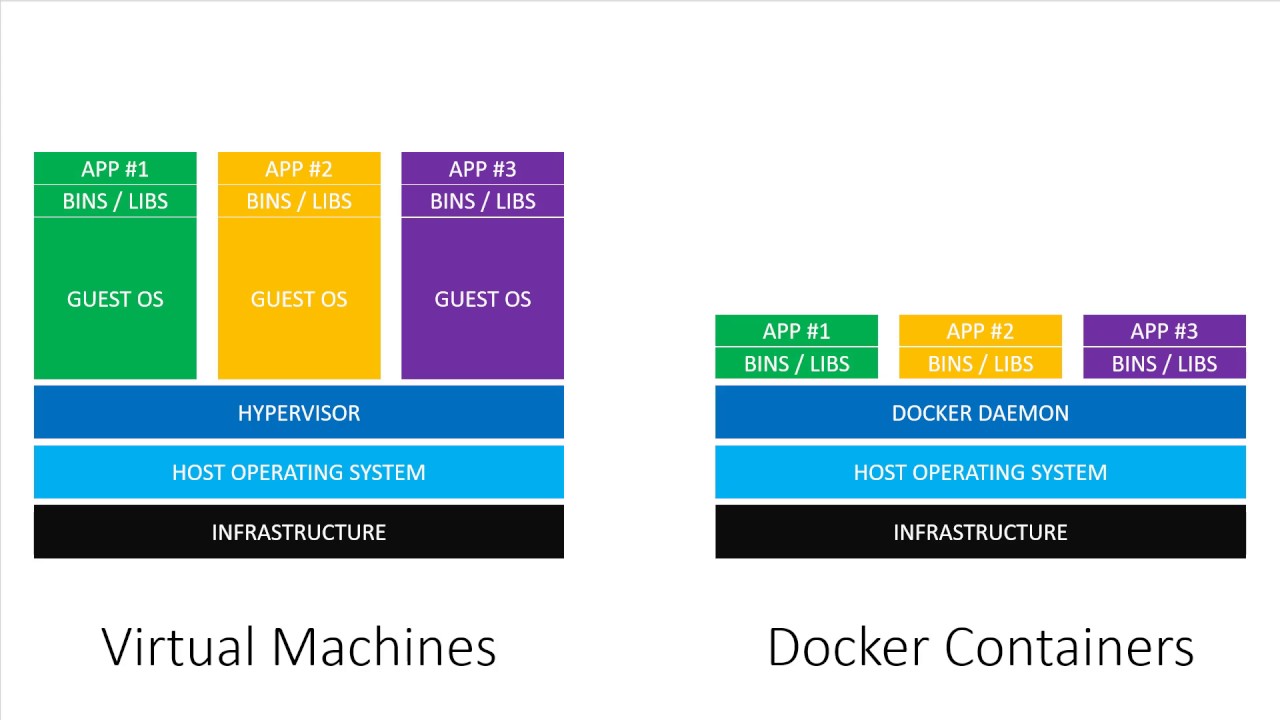
Docker vs Virtual Machines
| Feature | Docker Containers | Virtual Machines |
|---|---|---|
| Abstraction Level | Operating System Level | Hardware Level |
| OS Kernel | Shares host OS kernel | Each VM has its own kernel |
| Startup Time | Seconds or milliseconds | Minutes |
| Resource Usage | Lightweight (MBs) | Heavyweight (GBs) |
| Isolation | Process-level isolation | Full OS-level isolation |
| Performance | Near native performance | Performance overhead |
Core Docker Concepts
Docker Images
Read-only templates with instructions for creating containers
Built in layers, cached for efficiency, stored in registries
Docker Containers
Runnable instances of Docker images
Isolated processes with their own filesystem and network
Dockerfile
Text file with instructions to build Docker images
Declarative approach to defining application environments
Docker Registry
Centralized repository for storing and distributing images
Docker Hub is the default public registry
Docker Architecture Overview
Docker uses a client-server architecture with three main components:
Docker Client
Command-line interface that users interact with to send commands to the Docker daemon
Docker Daemon
Background process that manages Docker objects like images, containers, networks, and volumes
Docker Registry
Storage system for Docker images, with Docker Hub being the default public registry
Essential Docker Commands
Basic Container Operations
# Run a container
docker run hello-world

# Run container in background
docker run -d nginx

# List running containers
docker ps

# Stop a container
docker stop container_name

# Remove a container
docker rm container_name
Image Management
# Pull an image
docker pull ubuntu:22.04

# List images
docker images

# Build an image
docker build -t my-app .

# Remove an image
docker rmi image_name

# Push to registry
docker push my-app:latestDocker on ARM: Raspberry Pi 5 & Orange Pi 5
Learn how to install, configure, and optimize Docker on ARM-based single-board computers running Ubuntu 22.04/24.04 LTS for maximum performance and reliability.
Understanding ARM Architecture
ARM64 vs ARM32
ARM64 (AArch64) ✓
- • 64-bit architecture
- • Supports >4GB RAM
- • Better performance
- • Modern software ecosystem
ARM32 (armhf) ⚠️
- • 32-bit architecture
- • Limited to 4GB RAM
- • Legacy systems
- • Requires emulation on ARM64
Why ARM64 for Docker?
- Native performance without emulation overhead
- Access to larger memory addressing
- Growing ecosystem of ARM64 Docker images
- Better compatibility with modern applications
ARM Single Board Computer Comparison
Hardware Specifications Comparison
| Feature | Raspberry Pi 5 | Orange Pi 5 Plus | Orange Pi 5 Max |
|---|---|---|---|
| CPU | ARM Cortex-A76 64-bit | Rockchip RK3588 | Rockchip RK3588 |
| Cores | 4 cores @ 2.4GHz | 8 cores (4x A76 + 4x A55) | 8 cores (4x A76 + 4x A55) |
| RAM Options | 4GB, 8GB LPDDR4X | 4GB, 8GB, 16GB, 32GB LPDDR5 | 8GB, 16GB, 32GB LPDDR5 |
| NPU | ❌ None | ✅ 6 TOPS NPU | ✅ 6 TOPS NPU |
| Network Ports | 1x Gigabit Ethernet | 2x Gigabit Ethernet | 2x Gigabit Ethernet |
| Storage | microSD + PCIe 2.0 x1 | microSD + M.2 NVMe | microSD + M.2 NVMe |
| Video Output | Dual 4K HDMI | HDMI 2.1 8K + DP 1.4 | HDMI 2.1 8K + DP 1.4 |
| Wireless | WiFi 5 + BT 5.0 | WiFi 6 + BT 5.0 | WiFi 6 + BT 5.0 |
| Price Range | $60-80 | $89-159 | $139-199 |
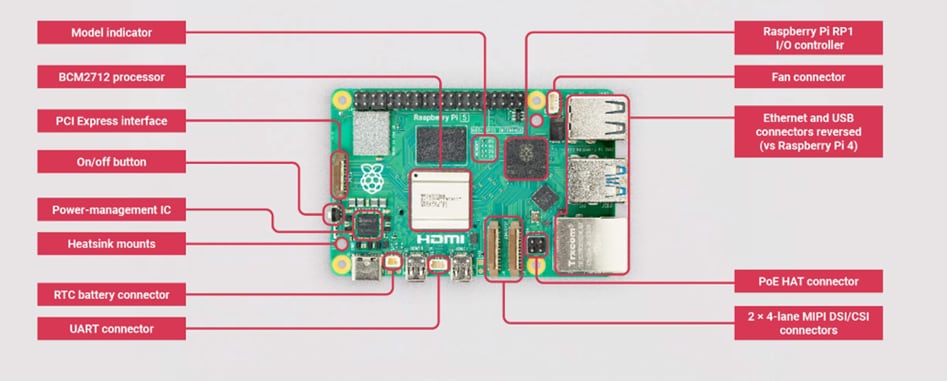
Raspberry Pi 5
- BCM2712 quad-core
- USB 3.0 ports
- Dual 4K HDMI
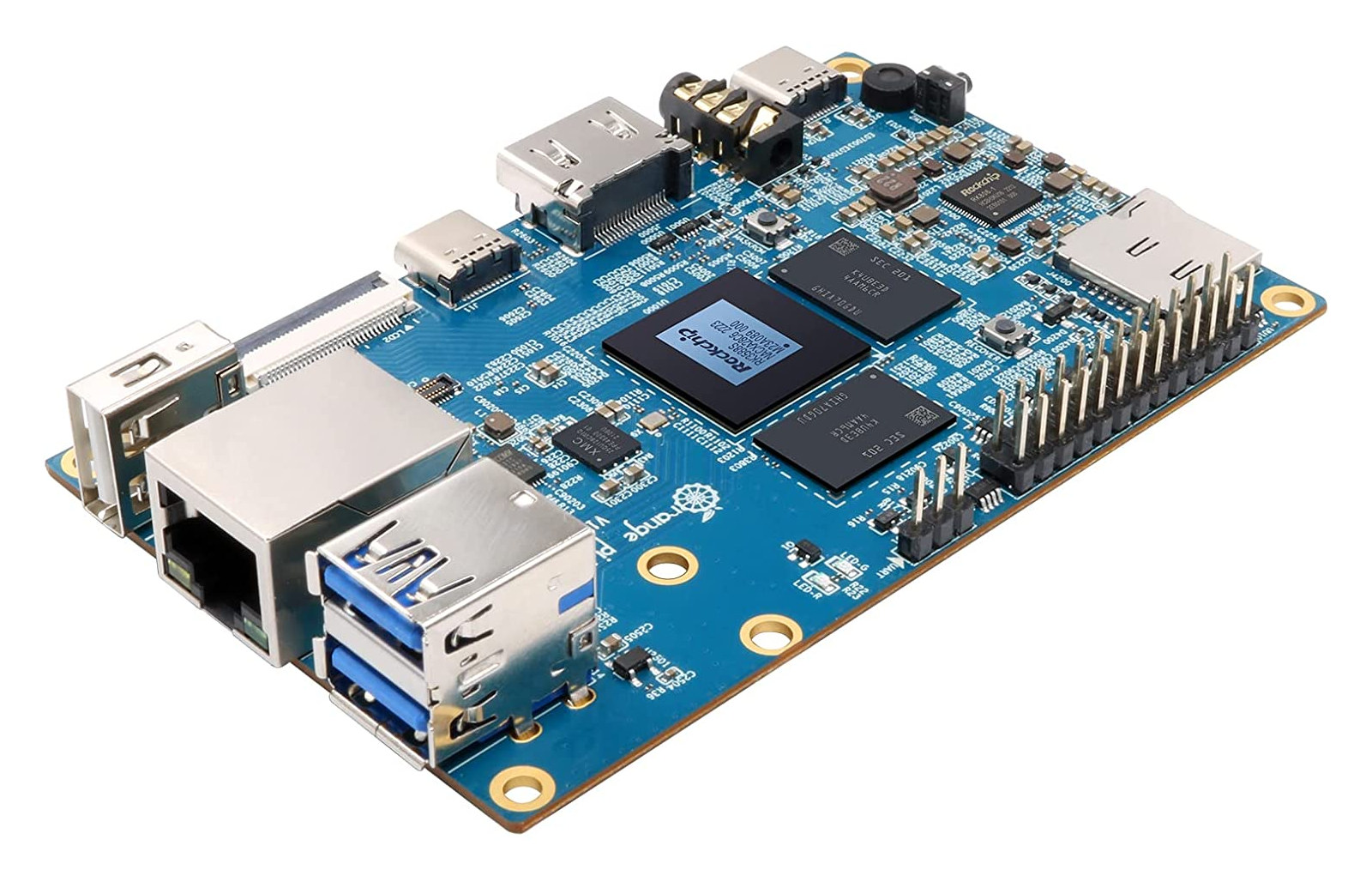
Orange Pi 5 Max
- Octa-core big.LITTLE
- M.2 NVMe SSD slot
- PCIe 3.0

Orange Pi 5 Plus
- Octa-core big.LITTLE
- M.2 NVMe SSD slot
- PCIe 3.0
Docker Installation on Ubuntu ARM64
Step 1: Remove Conflicting Packages
sudo apt-get update
for pkg in docker.io docker-doc docker-compose docker-compose-v2 podman-docker containerd runc; do
  sudo apt-get remove -y $pkg
done
sudo apt-get autoremove -y
Step 2: Install Prerequisites
sudo apt-get install -y ca-certificates curl gnupg lsb-releaseStep 3: Add Docker's GPG Key
sudo install -m 0755 -d /etc/apt/keyrings
sudo curl -fsSL https://download.docker.com/linux/ubuntu/gpg -o /etc/apt/keyrings/docker.asc
sudo chmod a+r /etc/apt/keyrings/docker.asc
Step 4: Add Docker Repository
echo \
  "deb [arch=$(dpkg --print-architecture) signed-by=/etc/apt/keyrings/docker.asc] https://download.docker.com/linux/ubuntu \
  $(. /etc/os-release && echo "$UBUNTU_CODENAME") stable" | \
  sudo tee /etc/apt/sources.list.d/docker.list > /dev/null
sudo apt-get update
Step 5: Install Docker Engine
sudo apt-get install -y docker-ce docker-ce-cli containerd.io docker-buildx-plugin docker-compose-pluginStep 6: Post-Installation Setup
# Add user to docker group
sudo groupadd docker
sudo usermod -aG docker $USER

# Enable Docker service
sudo systemctl enable docker
sudo systemctl start docker

# Test installation
docker run hello-world
Performance Optimization
NVMe SSD Storage
Dramatically improves I/O performance over microSD cards
Active Cooling
Prevents thermal throttling under sustained loads
ARM64 Images
Use native ARM64 images for optimal performance
Resource Limits
Set appropriate CPU and memory limits for containers
Working with Multi-Architecture Images
Many official Docker images support multiple architectures. Docker automatically selects the appropriate variant for your ARM64 system.
Pulling Multi-Arch Images
# Docker automatically selects ARM64 variant
docker pull nginx:latest
docker pull ubuntu:22.04
docker pull node:18-alpine

# Explicitly specify platform
docker pull --platform linux/arm64 nginx:latest
Building Multi-Arch Images
# Create buildx builder
docker buildx create --name mybuilder --use
docker buildx inspect --bootstrap

# Build for multiple platforms
docker buildx build --platform linux/amd64,linux/arm64 \
-t myapp:latest --push .Hardware Resource Management & Isolation
Master the art of managing hardware resources in Docker containers, from GPU acceleration to audio interfaces, while maintaining security and isolation on ARM Linux systems.
Hardware Resource Types
GPU Resources
Hardware acceleration for AI/ML workloads
NPU Access
Neural Processing Units for edge AI
Audio Hardware
Sound cards and audio interfaces
Storage Devices
Block devices and storage controllers
Core Isolation Mechanisms
Namespaces
Provide isolated views of system resources
- PID namespace
- Network namespace
- Mount namespace
- User namespace
Control Groups (cgroups)
Limit and monitor resource usage
- CPU limits
- Memory limits
- I/O throttling
- Device access
Device Mapping
Selective hardware access control
- --device flag
- Privileged mode
- Device permissions
- Udev rules
GPU Resource Management
NVIDIA GPU (Jetson Devices)
# Install NVIDIA Container Toolkit
curl -fsSL https://nvidia.github.io/libnvidia-container/gpgkey | sudo gpg --dearmor -o /usr/share/keyrings/nvidia-container-toolkit-keyring.gpg

# Add repository
echo "deb [signed-by=/usr/share/keyrings/nvidia-container-toolkit-keyring.gpg] https://nvidia.github.io/libnvidia-container/stable/deb/$(ARCH) /" | sudo tee /etc/apt/sources.list.d/nvidia-container-toolkit.list

# Install and configure
sudo apt-get update
sudo apt-get install -y nvidia-container-toolkit
sudo nvidia-ctk runtime configure --runtime=docker
sudo systemctl restart docker

# Run GPU-enabled container
docker run --gpus all nvidia/cuda:11.8-runtime-ubuntu22.04 nvidia-smi
ARM Mali/Adreno GPUs
# Map DRI devices for GPU access
docker run -it --rm \
  --device /dev/dri:/dev/dri \
  --device /dev/mali0:/dev/mali0 \
  -v /dev/shm:/dev/shm \
  my-gpu-app

# Docker Compose example
services:
  gpu-app:
    image: my-gpu-app
    devices:
      - "/dev/dri:/dev/dri"
      - "/dev/mali0:/dev/mali0"
    volumes:
      - "/dev/shm:/dev/shm"
GPU Resource Allocation with Docker Compose
version: '3.8'
services:
  ai-inference:
    image: tensorflow/tensorflow:latest-gpu
    deploy:
      resources:
        reservations:
          devices:
            - driver: nvidia
              count: 1
              capabilities: [gpu]
    environment:
      - NVIDIA_VISIBLE_DEVICES=all
Resource Monitoring & Limits
Setting Resource Limits
# CPU and memory limits
docker run -d \
  --cpus="1.5" \
  --memory="2g" \
  --memory-swap="4g" \
  --pids-limit=100 \
  my-app

# I/O limits
docker run -d \
  --device-read-bps /dev/sda:1mb \
  --device-write-bps /dev/sda:1mb \
  my-io-app
Monitoring Resources
# Real-time container stats
docker stats

# Detailed container inspection
docker inspect container_name

# System resource usage
htop
iotop
nvidia-smi  # For NVIDIA GPUs

# Container resource usage
docker exec container_name cat /proc/meminfo
docker exec container_name cat /proc/cpuinfoDocker Networking & Storage Management
Master container communication, network isolation, data persistence, and storage strategies for robust multi-container applications.
Docker Network Types
Bridge
Default network for single-host communication
Use Case: Development and single-host apps
Host
Shares host network stack
Use Case: High-performance applications
Overlay
Multi-host communication
Use Case: Distributed applications
None
Complete network isolation
Use Case: Security-sensitive tasks
Network Configuration
Custom Bridge Networks
# Create custom network
docker network create my-app-network

# Run containers on custom network
docker run -d --name web \
  --network my-app-network \
  -p 8080:80 nginx

docker run -d --name db \
  --network my-app-network \
  postgres:13

# Containers can communicate by name
# web can reach db at hostname "db"
Network Inspection
# List networks
docker network ls

# Inspect network details
docker network inspect my-app-network

# Connect running container to network
docker network connect my-app-network container_name

# Disconnect from network
docker network disconnect my-app-network container_name
Docker Compose Network Example
version: '3.8'
services:
  web:
    image: nginx
    ports:
      - "8080:80"
    networks:
      - frontend
      - backend

  api:
    image: my-api
    networks:
      - backend
      - database

  db:
    image: postgres:13
    networks:
      - database
    environment:
      POSTGRES_PASSWORD: secret

networks:
  frontend:
    driver: bridge
  backend:
    driver: bridge
  database:
    driver: bridge
    internal: true  # No external access
Network Security Best Practices
Network Segmentation
- • Use custom bridge networks
- • Isolate different application tiers
- • Implement internal-only networks
- • Limit inter-container communication
Port Management
- • Only publish necessary ports
- • Bind to specific interfaces
- • Use non-standard port numbers
- • Implement port scanning detection
Access Control
- • Use firewall rules
- • Implement authentication
- • Enable TLS encryption
- • Monitor network traffic
Practical Docker Implementations
Explore comprehensive implementations of popular applications and services using Docker on ARM devices, from home automation to AI inference and media management.
Application Categories
Home Assistant
Complete home automation platform
Media Centers
Kodi and entertainment systems
LLM Servers
Ollama and AI inference
Network Storage
Samba/NFS file sharing
Backup Systems
Automated backup solutions
Android Containers
Emulated Android environments
Home Assistant Supervised
Key Features
- Supervisor for add-on management
- Integrated backup system
- Web-based configuration
- Extensive device integration
- Automation engine
- Mobile app support

Installation Prerequisites
# Install required packages on Debian
sudo apt install -y apparmor-utils apt-transport-https avahi-daemon \
  ca-certificates curl dbus jq network-manager socat \
  software-properties-common udisks2 systemd-resolved

# Install Docker
curl -fsSL get.docker.com | sh
sudo usermod -aG docker $USER

# Install OS Agent
wget https://github.com/home-assistant/os-agent/releases/latest/download/os-agent_1.4.1_linux_aarch64.deb
sudo dpkg -i os-agent_1.4.1_linux_aarch64.deb

# Install Home Assistant Supervised
wget https://github.com/home-assistant/supervised-installer/releases/latest/download/homeassistant-supervised.deb
sudo apt install ./homeassistant-supervised.deb
System Requirements
2+ cores
4GB+
32GB+ SSD
Debian 11/12
Multi-Service Orchestration Strategy
For complex deployments involving multiple services, a hybrid orchestration approach provides the best balance of functionality and manageability.
Home Assistant Supervised
- Installed directly on Debian host
- Manages its own Docker containers
- Provides add-on ecosystem
- Integrated backup and updates
External Services (Docker Compose)
- Kodi media center
- Ollama LLM server
- Network storage (Samba/NFS)
- Backup systems
Integration Points
- • Home Assistant monitors external containers via Docker integration
- • API-based control of Kodi, Ollama, and other services
- • Shared storage volumes for media and configuration
- • Centralized logging and monitoring through Home Assistant
Docker Security: Protecting Your Containerized Applications
Learn essential security practices, vulnerability management, and production-ready configurations to secure your Docker deployments from development to production.
Core Security Principles
Least Privilege
Run containers with minimal required permissions
- Use non-root users in containers
- Drop unnecessary capabilities
- Use read-only filesystems when possible
- Implement proper user namespaces
Defense in Depth
Multiple layers of security controls
- Network segmentation
- Container runtime security
- Image vulnerability scanning
- Runtime monitoring and detection
Secure by Default
Security configurations from the start
- Secure base images
- Encrypted communication
- Secure secrets management
- Regular security updates
Continuous Monitoring
Ongoing security assessment and response
- Runtime threat detection
- Compliance monitoring
- Audit logging
- Incident response procedures
Container Security Best Practices
Secure Dockerfile Practices
# Use specific, minimal base images
FROM node:18-alpine

# Create non-root user
RUN addgroup -g 1001 -S nodejs
RUN adduser -S nextjs -u 1001

# Set working directory
WORKDIR /app

# Copy package files first (layer caching)
COPY package*.json ./
RUN npm ci --only=production

# Copy application code
COPY --chown=nextjs:nodejs . .

# Switch to non-root user
USER nextjs

# Expose port
EXPOSE 3000

# Use exec form for CMD
CMD ["node", "server.js"]
Runtime Security Options
# Run with non-root user
docker run --user 1001:1001 myapp

# Drop all capabilities, add only needed ones
docker run --cap-drop=ALL --cap-add=NET_BIND_SERVICE myapp

# Read-only root filesystem
docker run --read-only --tmpfs /tmp myapp

# Limit resources
docker run --memory=512m --cpus=1.0 myapp

# No new privileges
docker run --security-opt=no-new-privileges myapp

# Use security profiles
docker run --security-opt apparmor:docker-default myappSecurity Tools Ecosystem
| Category | Open Source | Commercial | Cloud Native |
|---|---|---|---|
| Vulnerability Scanning | Trivy, Clair, Grype | Snyk, Aqua, Twistlock | AWS ECR, Azure ACR, GCR |
| Runtime Security | Falco, OSSEC | Aqua, Sysdig, Prisma | AWS GuardDuty, Azure Defender |
| Secrets Management | Vault, Sealed Secrets | CyberArk, Thycotic | AWS Secrets Manager, Azure Key Vault |
| Policy Enforcement | OPA Gatekeeper, Kyverno | Styra DAS, Nirmata | AWS Config, Azure Policy |
| Compliance | InSpec, OpenSCAP | Rapid7, Qualys | AWS Security Hub, Azure Security Center |